
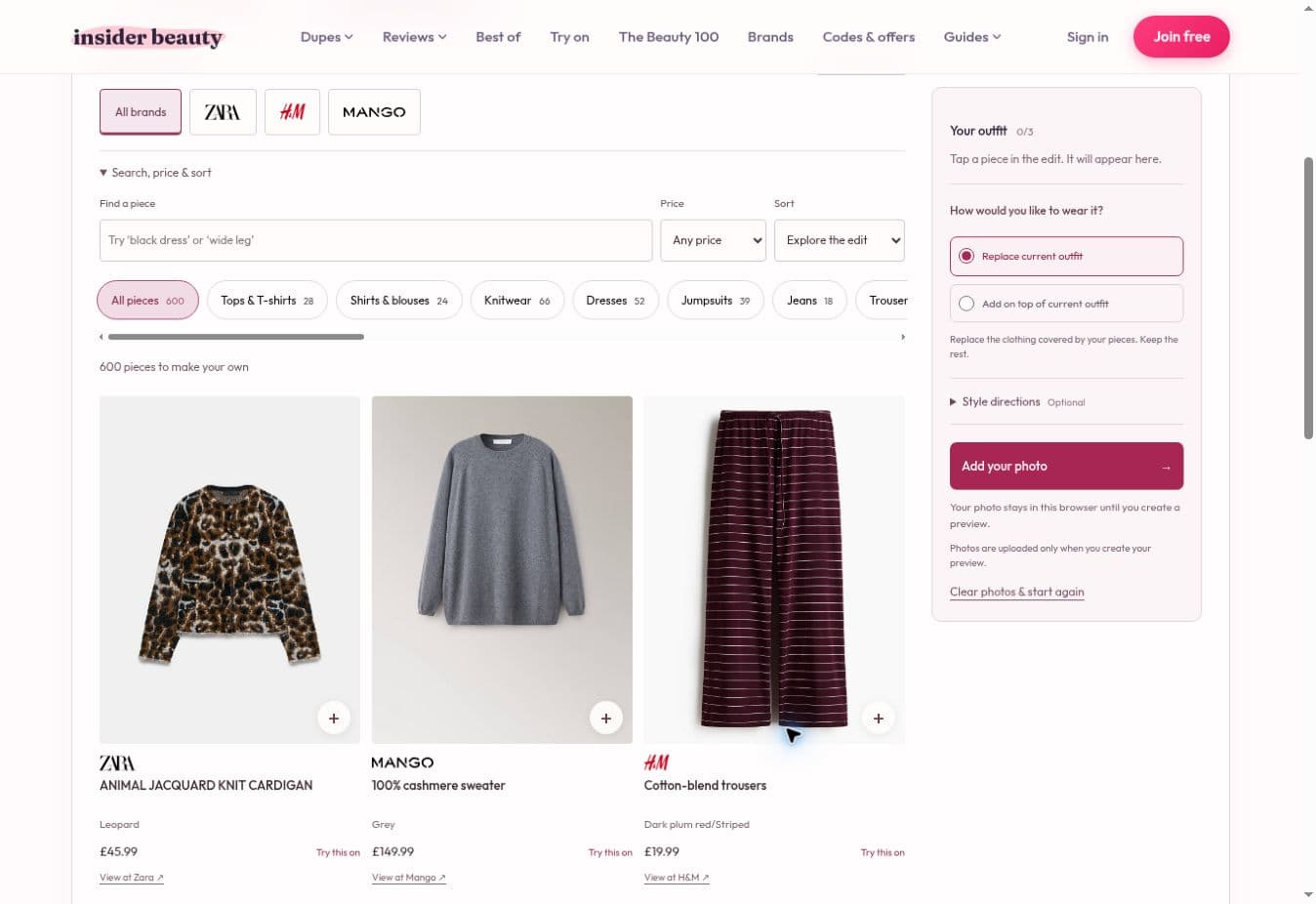
Try clothes on your own photo for free with Insider Beauty’s virtual try-on studio. Our live clothing feed brings together current pieces and new arrivals from major high-street brands, including Zara, H&M and Mango, so you can explore a look before deciding what to buy.
There’s no account to create, no subscription and no purchase required. Add a photo, choose your clothes and create a preview. You can mix pieces from different brands in the same outfit.
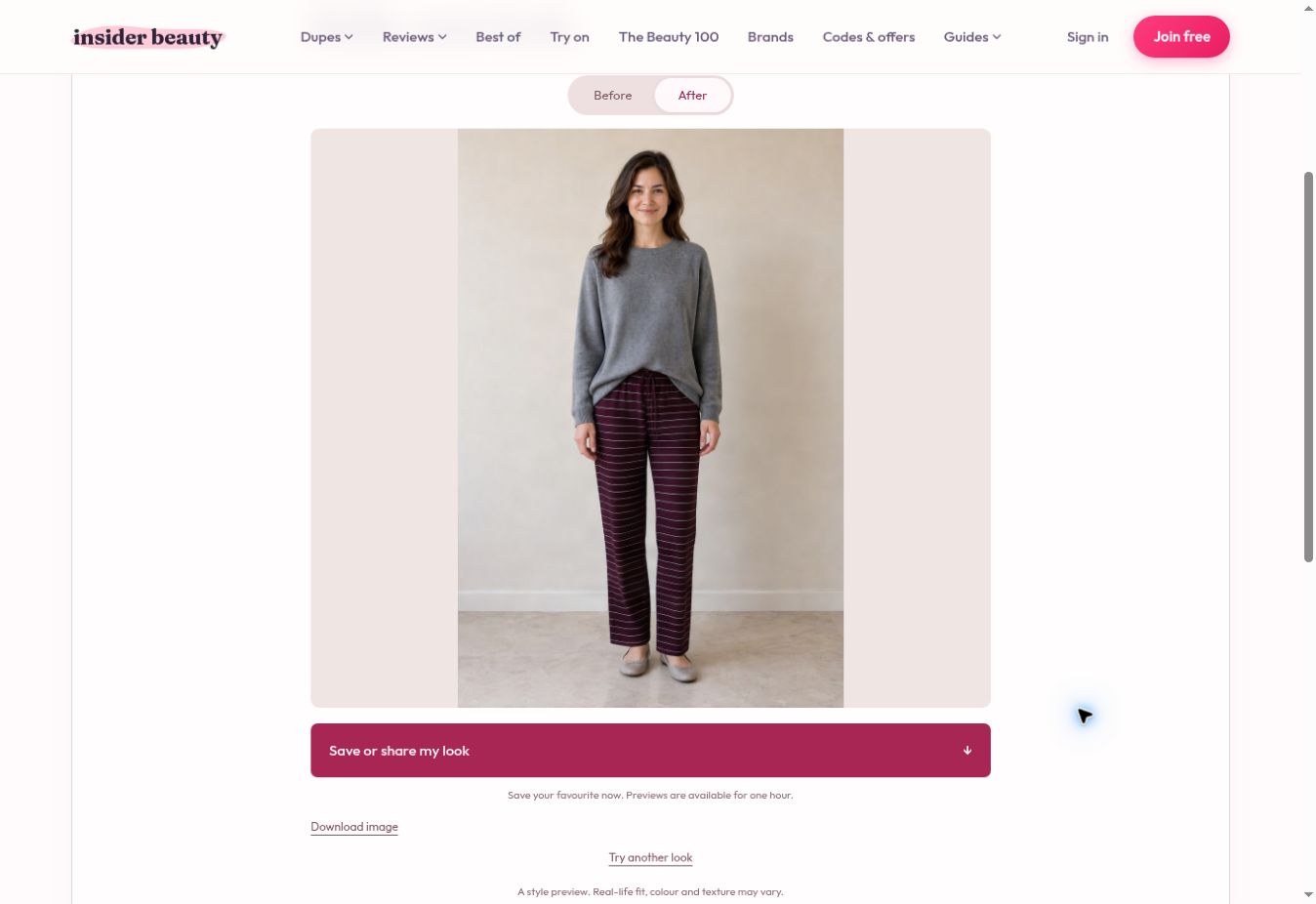
The screenshots below show the real studio. The person used in the demonstration is an AI-generated model; the final outfit image was made using the try-on tool.
A live clothing feed, ready to try on
The clothing edit brings selected pieces from the brands’ UK women’s ranges into one place. It updates regularly, so you can come back to discover new additions and try them on your photo without collecting product images yourself.
Browse across all three brands, or open a dedicated studio: Zara virtual try-on, H&M virtual try-on or Mango virtual try-on.
Each piece has a product image, its listed price and a link to the retailer. The feed is a changing selection, so it won’t include every item a brand sells. Stock and prices can change between updates; check the retailer’s page when you’re ready to shop.
How to try on clothes with your own photo
1. Open Try On and add your photo
Choose Try on in the menu, or open the studio here. Start in Clothes and select Add your photo. You can choose a picture from your camera roll or files.
Use a clear standing photo with your full outfit in view. Keep your arms away from the clothes where possible, and choose good light with an uncluttered background. Include your legs if you want to try trousers, skirts or a dress.
You can browse the clothing first, too. Your selected photo stays in the browser until you ask the studio to create a preview.
2. Find something in the live clothing edit
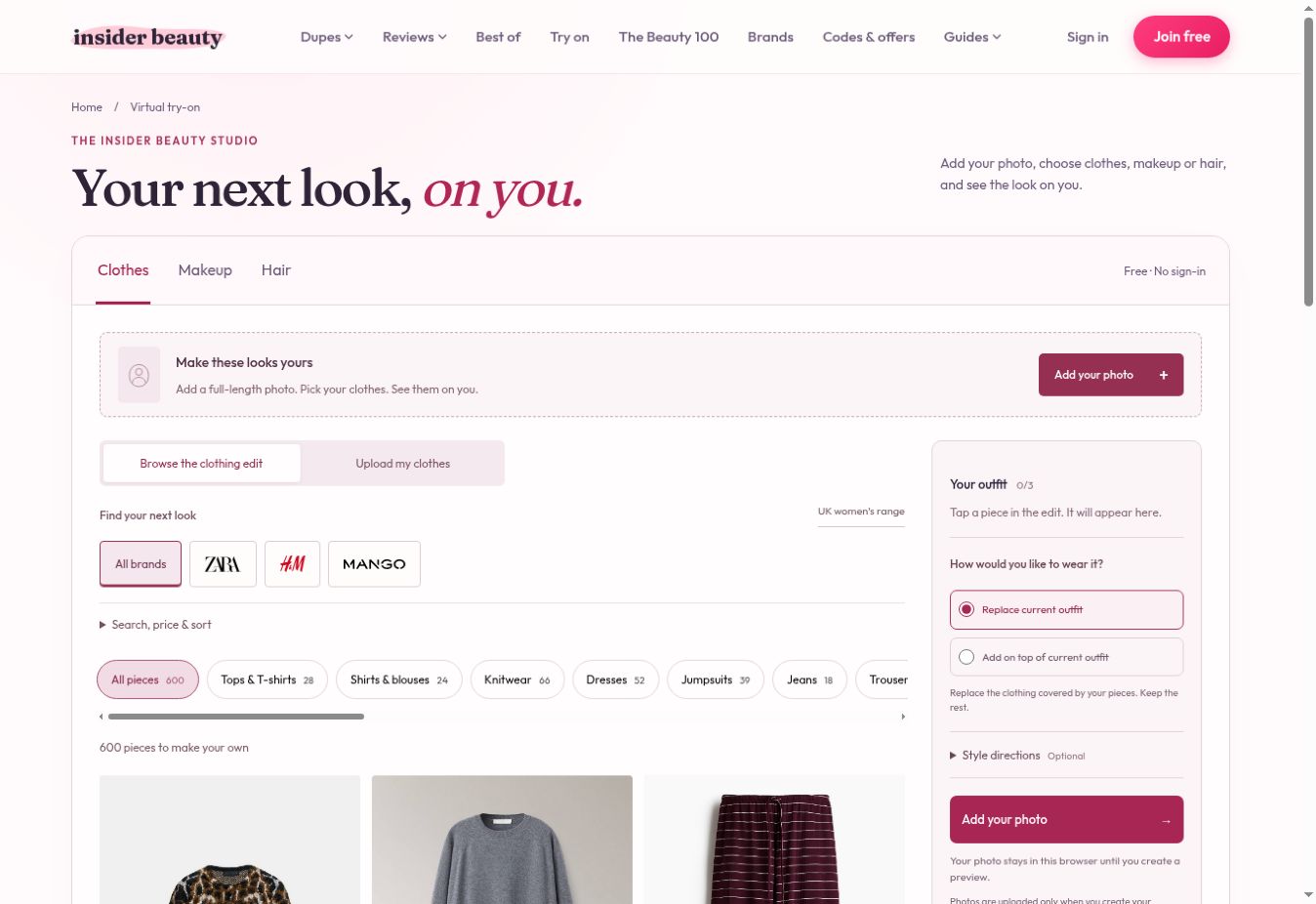
Select a brand or use the category buttons to narrow your choices. Knitwear, dresses, jeans, trousers and coats are useful places to start. The category row scrolls sideways to reveal more options.
Open Search, price & sort to search for a particular piece, set a price ceiling or change the order. Try a description such as “black dress” or “wide leg”. Choose Latest added to see the most recent additions to our feed, or sort by price when you have a budget in mind.
Use Next pieces to browse more results. The items and prices in these screenshots were visible on 26 October 2026; the live edit will change as it refreshes.
3. Build your outfit
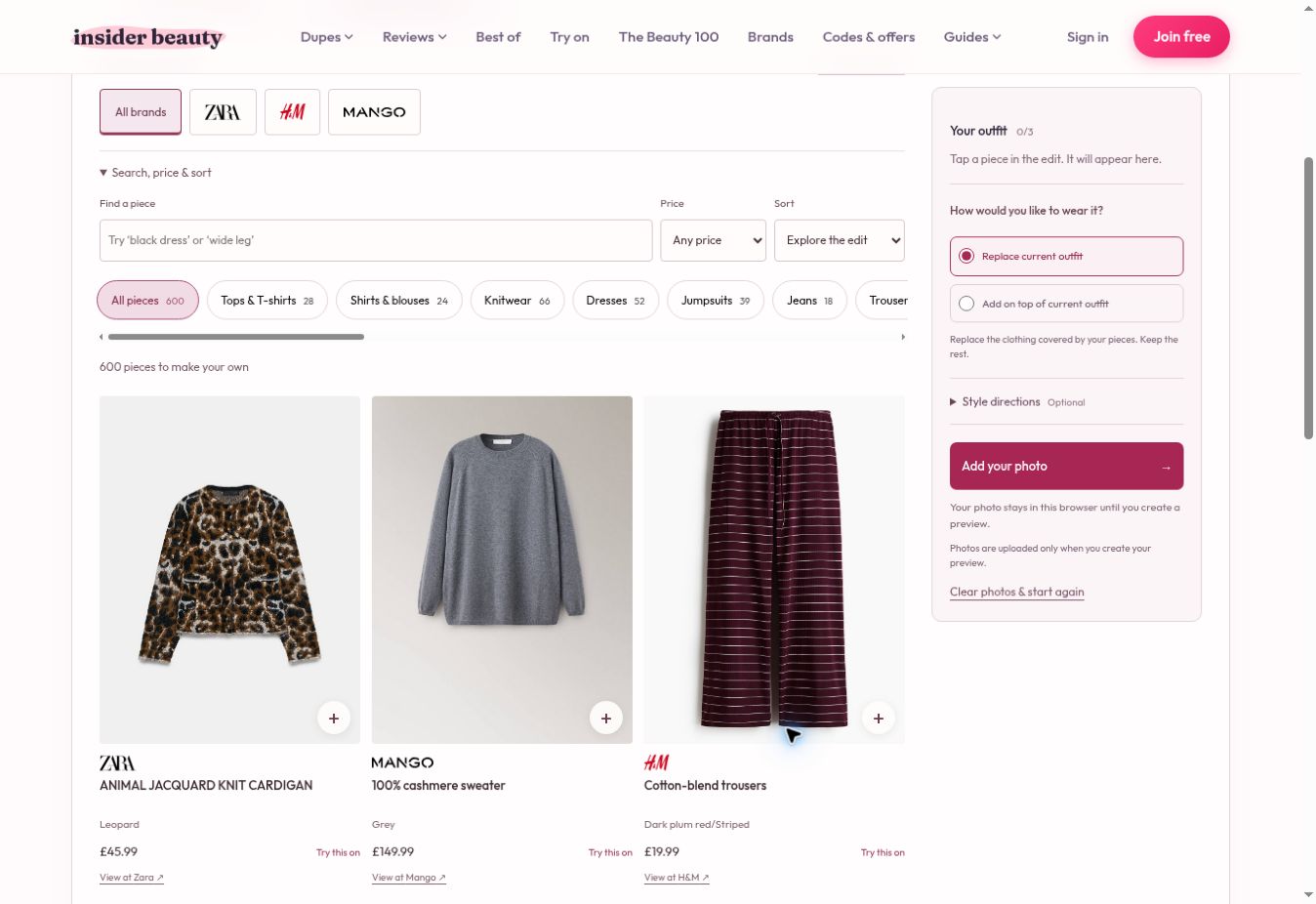
Tap a product card or its Try this on control. It appears in Your outfit beside your photo. You can combine a top and bottom, or choose a dress or jumpsuit, then add an outer layer. The studio accepts up to three pieces.
For this example, we selected a grey Mango sweater and striped H&M trousers. You could also try a blouse with jeans, or see how a blazer changes a dress you’re considering.
Tap a selected product again, or use the small remove button in Your outfit, to take it out. Selecting another piece for the same part of the outfit replaces that selection. A dress or jumpsuit replaces the selected top and bottom.
4. Choose how to wear it and create your preview
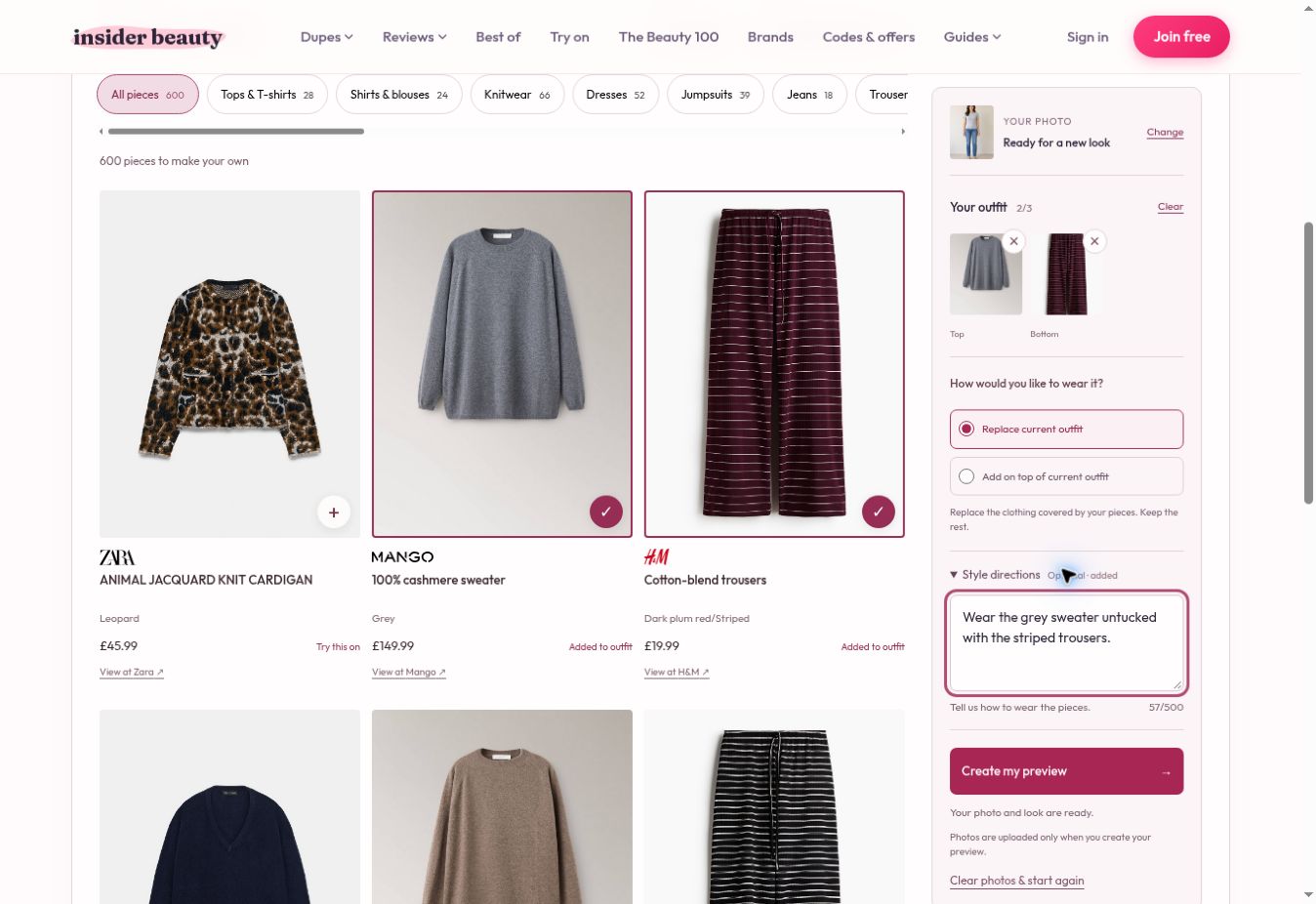
Leave Replace current outfit selected to replace the corresponding clothing in your original photo. Choose Add on top of current outfit when you want to explore a new layer over what you’re already wearing.
Style directions is optional. A short instruction such as “Wear the sweater untucked” or “Leave the jacket open” gives the preview more direction. Individual details can still vary.
When your photo and pieces are ready, select Create my preview. Leave the tab open while it works. The studio shows its progress and displays the finished image when it’s ready.
5. Compare the result and save your look
Use Before and After to compare your original photo with the preview. Look at the colour combination, the overall shape and how the pieces work together.
Select Save or share my look, or Download image, to keep the result. Previews are available in the browser that created them for one hour, so save a favourite before leaving. Try another look takes you back to experiment with different pieces.
There is no daily generation limit. Create one preview at a time, then try another outfit for free.
Try your first outfit for free →
Can I upload clothes that aren’t in the feed?
Yes. Choose Upload my clothes instead of Browse the clothing edit. You can add up to three garment photos, with one piece in each. Use clear images that show the whole garment and its details.
The studio also offers Makeup and Hair modes for exploring a different beauty look. For those, a front-facing portrait with your face and hairline visible gives you a better starting point.
Will virtual try-on tell me which size to buy?
No. It creates a visual style preview and doesn’t measure your body or calculate your clothing size. Real-life fit, colour and texture can differ from the image.
Use it to explore outfits, then check the retailer’s measurements, fabric details and availability before buying. You can open the retailer directly from each clothing card.
What happens to my photo?
Your chosen images stay in your browser until you create a preview. They are then sent to our image-processing provider to make the result. We don’t publish your uploads.
Processed inputs and results are kept privately for 30 days, and authorised administrators can review them to assess quality and investigate misuse. The one-hour preview window is separate from that retention period. Read our photo privacy information for the details.
Is it really free, without an account?
Yes. Browsing the clothing feed and creating try-on previews are free, with no sign-in or subscription. Buying anything you discover is optional and happens on the retailer’s website.